Desktop only — coming soon on mobile

BrowserPilot is currently a desktop Chrome extension. Mobile support is coming in the future. Check back from your desktop to install.

Install BrowserPilot cleanly.

Sign in with GitHub on the web first, install the approved Chrome extension, run the setup command, then open BrowserPilot in the same Chrome profile.

Webstore Demo Authentication Dashboard Runtime HUD
How it works

What each piece does during setup

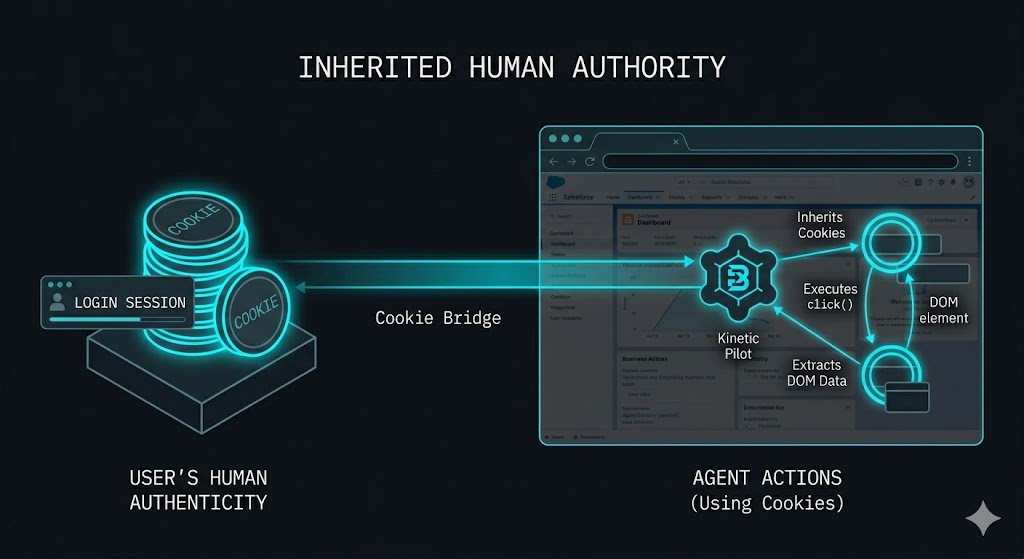
BrowserPilot uses two components: a Chrome extension you control and a local runtime helper for machine-level tasks. Together they keep your automation fast, auditable, and easy to recover.

Chrome extension

The orchestrator. It manages the user journey, credentials, and high-level browser interactions safely.

  • Owns sign-in, claim handoff, and next-step routing.
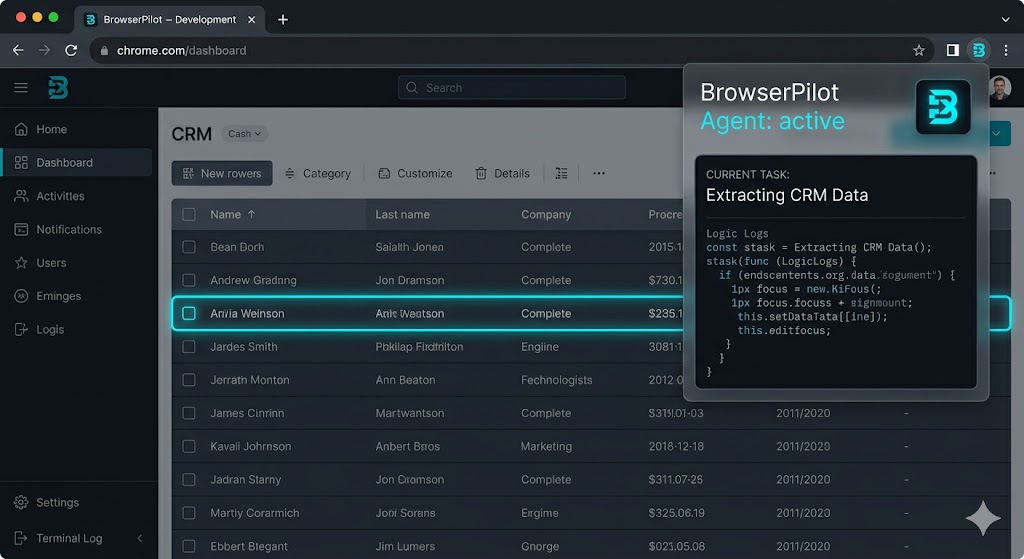
  • Shows whether the runtime is missing, stale, or verified.
  • Keeps privileged machine actions behind a visible user-controlled surface.

Local runtime helper

The engine. It executes local machine-level automation required by complex workflows under strict verifiable boundaries.

  • Runs only after the extension hands it a valid machine task.
  • Publishes the exact artifact version and SHA you are expected to trust.
  • Stays replaceable without changing the buyer-facing extension flow.
Flow

What the install flow looks like in practice

This is the shortest path from purchase to a usable BrowserPilot session. The accordion keeps the full checklist, while the quick read below tells buyers what each stage is doing.

01

Confirm access on the web

Start with GitHub sign-in on account.seedsource.dev so BrowserPilot setup attaches to the correct signed-in account before Chrome asks you to continue.

02

Install the visible layer

Install the approved Chrome extension in that same profile. Do not switch browsers or Chrome profiles midway through setup.

03

Verify the local runtime

After sign-in, your personalized browserpilot setup --grant <token> command appears in your account portal. Open your account portal to copy and run it, then open the extension to confirm the machine is ready.

What the install flow looks like in practice +
  • Continue with GitHub on account.seedsource.dev.
  • Confirm the account has BrowserPilot access before continuing.
  • Install the approved Chrome extension in the same profile.
  • Copy and run the setup command.
  • Open the installed extension and confirm BrowserPilot shows an active status.
Control Boundaries

Architecture Truths

The install experience feels calmer when the boundary lines are explicit. These are the three constraints the page needs to teach without sending the buyer into platform details.

Visible authority

Chrome owns the visible journey. The helper only handles the local lift.

Account state stays upstairs

The extension stays in charge of account state and next steps.

Recovery stays buyer-readable

The account panel carries the machine command while BrowserPilot keeps the runtime verifiable.

Proof Before Trust

Install it. Verify it. BrowserPilot proves it.

The runtime should not read like a vague second step. These checkpoints explain exactly what changes between download, verification, and a trustworthy ready state.

A

Identity enters through the extension

Provide credentials to the extension.

B

Runtime trust is checked, not assumed

The extension validates the local runtime hash mapping.

C

Ready means the machine passed the contract

Ready means verified, not merely installed.

Artifacts

Runtime Helper Integration

The helper section should answer the practical trust questions directly: which build matches this install surface, which platform should the buyer pick, and what exact checksum BrowserPilot expects to see.

Windows (x64)

Native executable.

Artifact Details

Version: 4.0.3

Download: https://browserpilot.seedsource.dev/runtime-helper/browserpilot-runtime-helper-4.0.3-windows-x64.zip

SHA-256: 3cd0c8708ade4614a28eebdd3a2963119c3a4d8d8b47969a401313307ccf8bb8

macOS (Apple Silicon)

Universal binary support.

Artifact Details

Version: 4.0.3

Download: https://browserpilot.seedsource.dev/runtime-helper/browserpilot-runtime-helper-4.0.3-macos-arm64.tar.gz

SHA-256: 43c24076e1f44962da09ce7c7f42ea8e39005fbfc43cc826e7660e737f27c662
Platform cue: BrowserPilot highlights the card that matches the current machine, but both artifacts stay visible so support and recovery flows remain easy to audit.
Fallback

Troubleshooting & Escalation

If automated flows fail, follow the fallback escalation path. The goal is to tell the buyer where to read the current machine state, what to copy into support, and which portal action is the safest recovery move.

When to use this section

Use it when the current setup handoff is stale, the extension is signed into the wrong account, or the runtime shows as missing even after install.

What support needs from you

Keep the fallback handoff block and the account recovery path together so the buyer never has to guess which recovery step or account page matters.

Fallback Handoff Steps

To: [email protected]
Subject: BrowserPilot private install handoff

Account or purchase email: [your account/purchase email]
Order or access reference ID: [your order/reference ID]
OS: [Windows/macOS]
Problem: [claim missing / install blocked / runtime repair]
Account or purchase email: [your account/purchase email]
Order or access reference ID: [your order/reference ID]

Recovery Path

If you're unable to reconnect BrowserPilot access to the extension, ensure you are signed into account.seedsource.dev and use the portal tools.

See handoff steps
Ready? Continue with GitHub